One wrong firmware file. Three minutes. A phone that will never turn on again.
That’s not a worst-case scenario — it’s what happens every day to people who picked the right intention but the wrong flashing software.
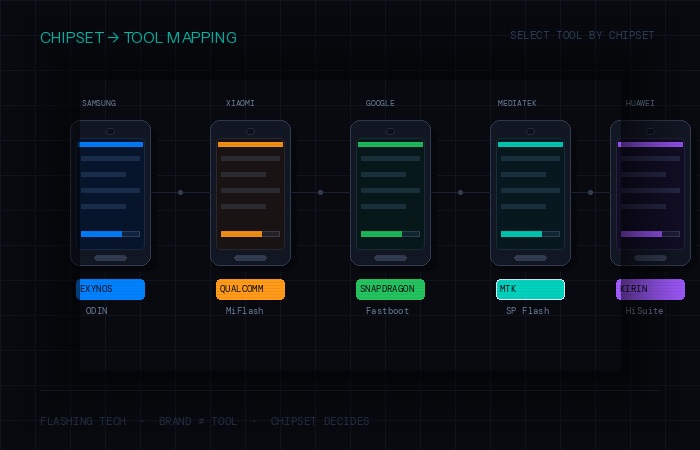
Flashing tech for mobile phones isn’t complicated once you understand one rule: the tool has to match the chipset, not just the brand. An Odin file won’t talk to a MediaTek processor. A MiFlash ROM won’t work on a Samsung. And Fastboot is useless on a locked bootloader.
This guide cuts straight to what matters — the best flashing software available in 2026, what each one is actually built for, and exactly how to choose before you connect a single cable.
Table of Contents
Summary
- Flashing software lets you rewrite a phone’s firmware — the deepest layer of software controlling hardware behavior.
- The “best” tool depends on your phone brand, chipset, and specific goal (unlocking, custom ROM, stock recovery).
- Popular tools include SP Flash Tool, Odin, MiFlash, and Fastboot — each built for different ecosystems.
- Using the wrong tool or wrong firmware file is the most common cause of permanently bricked phones.
- Always verify the exact model and hardware revision. Google’s factory image documentation is a reliable reference for understanding how firmware versioning and hardware variants are structured across Android devices.
- Always verify firmware sources, match the exact device model, and have a backup before you start.
Not all flashing software is created equal — and using the wrong one can turn your phone into an expensive brick in under three minutes.
Flashing tech for mobile phones means rewriting the firmware stored in your device’s memory chips: the bootloader, recovery partition, baseband, or full OS image. It sits below Android or iOS, and changing it requires dedicated tools that communicate directly with the phone’s chipset.
The problem? Most guides list tools without explaining which ones actually match your device, your chipset, and your specific goal. That’s where most flashing mistakes begin.
This guide covers the best flashing software available in 2026, what each one is actually for, and how to choose without risking your hardware.
What Flashing Software Actually Does
Before picking a tool, it helps to understand what’s happening under the hood.
When you flash a phone, you’re writing a new firmware image directly to the device’s non-volatile memory — the storage that persists without power. The flashing software acts as the bridge between your computer and the phone’s chipset.
Different chipsets speak different protocols. A tool built for MediaTek chips won’t work on a Qualcomm device. A Samsung-specific tool won’t communicate correctly with a Xiaomi. This is the single most important factor in choosing flashing software, and most tutorials gloss over it.
The 6 Best Flashing Software Tools for Mobile Phones
1. SP Flash Tool (Smart Phone Flash Tool)
Best for: MediaTek (MTK) chipset devices
SP Flash Tool is the go-to utility for flashing phones powered by MediaTek processors — a chipset found in a large share of budget and mid-range Android devices globally, particularly from brands like Tecno, Infinix, Itel, Ulefone, and many Chinese OEMs.
It supports scatter-file based flashing, meaning you load a scatter file that maps each firmware partition to the correct memory address. This makes it precise — but also means a wrong scatter file can write data to the wrong location.
Key capabilities:
- Full firmware flashing (format + download)
- Individual partition flashing (recovery only, boot only, etc.)
- IMEI repair (where legally permitted)
- Bricked device recovery via download mode
Limitation: Not compatible with Qualcomm or Exynos devices. Strictly MediaTek only.
2. Odin (Samsung Flash Tool)
Best for: Samsung Galaxy devices
Odin is Samsung’s semi-official flashing tool, originally an internal utility that became widely available. It’s the standard tool for flashing stock firmware, custom recoveries (like TWRP), and rooting Samsung devices via Download Mode (Odin mode).
It uses .tar or .tar.md5 firmware packages, and Samsung’s firmware files are widely available through platforms like SamFirm and Frija — tools that pull directly from Samsung’s update servers.
Key capabilities:
- Stock firmware restoration (unbricking)
- Custom recovery installation
- Bootloader and modem partition flashing
- Works across the full Samsung Galaxy lineup
Limitation: Samsung-exclusive. Using it on non-Samsung devices will fail at detection. Also, flashing on newer Samsung models with locked bootloaders may trigger Knox counter, permanently affecting warranty status.
3. Fastboot (ADB & Fastboot — Android Platform Tools)
Best for: Pixel devices, unlocked Android bootloaders, custom ROM installation
Fastboot is Google’s official command-line tool, bundled with the Android Platform Tools package maintained directly by Google. It’s not a GUI application — it runs through a terminal — but it’s the most universal flashing method for Android devices with unlocked bootloaders.
If you’re flashing a custom ROM on a Pixel, OnePlus, or any device with an officially unlockable bootloader, Fastboot is typically the correct tool.
Key capabilities:
- Flashing factory images (full wipe + restore)
- Bootloader unlocking (on supported devices)
- Custom recovery flashing
- Sideloading via ADB (Android Debug Bridge)
Limitation: Requires an unlocked bootloader. On locked devices, Fastboot commands are restricted. Not suitable for emergency recovery on locked phones.
4. MiFlash Tool
Best for: Xiaomi and Redmi devices
MiFlash is Xiaomi’s official flashing utility, designed specifically for flashing Fastboot ROMs on Xiaomi, Redmi, and POCO devices. It uses the same underlying Fastboot protocol but wraps it in a GUI and integrates directly with Xiaomi’s firmware ecosystem.
Xiaomi requires an unlocked bootloader before flashing — and their unlock process has a mandatory waiting period (currently up to 72 hours after applying) tied to your Mi account. This is a deliberate friction point to reduce bootloader unlocking rates on consumer devices.
Key capabilities:
- Full ROM flashing in Fastboot mode
- Clean flash and save data flash options
- Direct integration with Xiaomi’s firmware repositories
- Supports MIUI and HyperOS ROM formats
Limitation: Xiaomi devices only. Bootloader must be unlocked first. The Mi account linking requirement means you can’t flash a brand-new device immediately.
5. QPST / QFIL (Qualcomm Flash Image Loader)
Best for: Qualcomm chipset devices in EDL (Emergency Download) mode
QFIL is Qualcomm’s flashing tool used when a device is in EDL (9008) mode — a deep recovery state accessible even when the bootloader is locked and standard recovery is broken. It’s the last resort for recovering a completely bricked Qualcomm-powered phone.
This tool is widely used by repair technicians working on devices from brands like OnePlus, some Xiaomi models, Motorola, and others running Snapdragon chipsets.
Key capabilities:
- Emergency device recovery (EDL/9008 mode)
- Full firmware flashing via Firehose programmer
- Partition-level writing
- Used when all other recovery methods have failed
Limitation: Requires the correct Firehose programmer file for each specific device — these aren’t always publicly available. EDL mode access itself may be restricted on newer devices via signed bootloaders.
6. Phoenix Suite / Huawei HiSuite
Best for: Huawei and Honor devices
Huawei devices use their own flashing protocols, and standard Android tools don’t apply. HiSuite is Huawei’s official device management and firmware update tool, while Phoenix Suite is used in service center environments for deeper partition-level flashing.
Since Huawei’s separation from Google services in 2019, firmware management on Huawei devices has become increasingly proprietary — making third-party flashing significantly more restricted than on other Android brands.
Key capabilities (HiSuite):
- Official firmware updates and restoration
- Backup and restore before flashing
- Works on EMUI and HarmonyOS devices
Flashing Software Comparison at a Glance
| Tool | Chipset/Brand | Skill Level | GUI | Best Use Case |
| SP Flash Tool | MediaTek (MTK) | Intermediate | Yes | Budget/mid-range Android flash |
| Odin | Samsung (all chips) | Beginner–Inter. | Yes | Stock restore, custom recovery |
| Fastboot/ADB | Any (unlocked) | Intermediate | No (CLI) | Custom ROMs, Pixel factory images |
| MiFlash | Xiaomi/Redmi/POCO | Beginner–Inter. | Yes | MIUI/HyperOS ROM flashing |
| QFIL/QPST | Qualcomm (EDL) | Advanced | Yes | Emergency brick recovery |
| HiSuite | Huawei/Honor | Beginner | Yes | Official firmware restore |
How to Choose the Right Flashing Software
Follow this decision path before downloading anything:
Step 1: Identify your phone’s chipset. Go to Settings → About Phone → look for processor info, or search your exact model number online. MediaTek, Qualcomm Snapdragon, Samsung Exynos, and Kirin all require different tools.
Step 2: Identify your goal.
- Restoring a bricked Samsung? → Odin
- Flashing a custom ROM on a Pixel? → Fastboot
- Recovering a completely dead Qualcomm device? → QFIL
- Updating a Xiaomi ROM? → MiFlash
- Flashing a MediaTek budget phone? → SP Flash Tool
Step 3: Verify your firmware source. Only use firmware from the manufacturer’s official servers or well-audited community sources (XDA Developers is the most established). Confirm checksums before flashing.
Step 4: Check bootloader status. Some tools require an unlocked bootloader. Others (Odin, SP Flash Tool, QFIL) can work on locked devices depending on the mode. Know which category your device falls into before starting.
Common Mistakes When Using Flashing Software
Using a firmware file built for a different regional variant. The same model number sold in different markets often has different hardware. A firmware mismatch at the partition level can cause boot loops or permanent damage.
Flashing the full ROM when only the recovery needs replacing. Most tools allow partition-specific flashing. Flashing a full image when you only needed to replace one partition wipes more data than necessary.
Ignoring driver issues on Windows. Most flashing tools require specific USB drivers (MTK drivers, Samsung USB drivers, Qualcomm HS-USB drivers). A tool that can’t detect the device isn’t a firmware problem — it’s a driver problem, and it’s the most common first-time error.
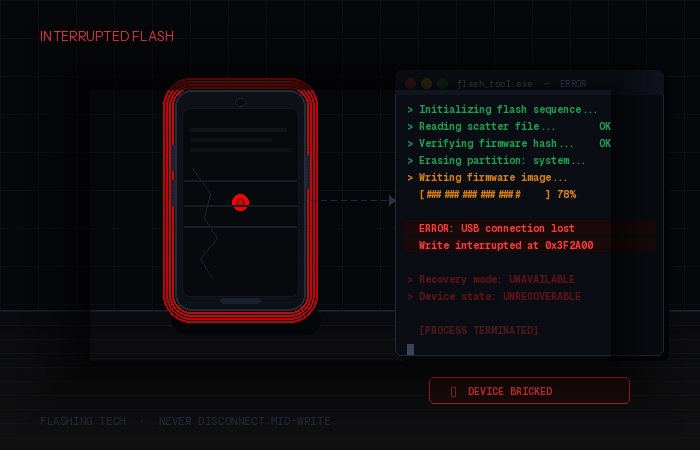
Interrupting the flash process. Once writing starts, don’t unplug the cable, don’t let the battery die, and don’t close the software. A write interruption mid-process is one of the few genuinely unrecoverable failure states.
FAQs
What is the best flashing software for Android phones? There’s no single best tool — it depends on your phone’s chipset and brand. Odin is best for Samsung, SP Flash Tool for MediaTek devices, MiFlash for Xiaomi, and Fastboot for unlocked devices with custom ROMs.
Can flashing software work on any Android phone? No. Each tool is designed for specific chipsets or brands. Using the wrong tool won’t communicate with your device and could cause errors if the phone is put into an incompatible mode.
Is it safe to use third-party flashing software? It can be, if the tool is from a trusted source and the firmware is verified. The risk comes from unverified firmware files or tools bundled with malware from unofficial download sites.
What happens if flashing fails halfway? A partially written firmware can result in a bricked device. Recovery options depend on the chipset — Qualcomm devices can often be recovered via EDL mode, while some MediaTek devices support fallback boot modes.
Do I need to unlock the bootloader before flashing? It depends on the tool and goal. Odin and SP Flash Tool can flash in their respective device modes without a fully unlocked bootloader. Fastboot-based flashing typically requires bootloader unlock first.
Will flashing erase all my data? A full firmware flash (format + download) erases everything. Partition-specific flashing (e.g., recovery only) may not. Always back up before starting regardless.
Final Conclusion
Flashing tech for mobile phones is more tool-specific than most guides admit — and that specificity is exactly what separates a clean flash from a damaged device.
The best flashing software isn’t the most popular one. It’s the one that matches your phone’s chipset, your goal, and your current device state. Odin for Samsung. SP Flash Tool for MediaTek. MiFlash for Xiaomi. Fastboot for unlocked Android devices. QFIL when everything else has failed.
Before you flash anything, confirm your chipset, verify your firmware source, check your bootloader status, and make sure you have a clear recovery path.